
How to Use Spreadsheets to Track Invoicing, Payments, and Load Issues — Without Leaving Dispatch
Most accounting teams stay in the Accounting tab — but the fastest way to manage invoicing, payment status, and problem loads is actually in Dispatch. With custom spreadsheets, you can filter delivered loads, flag issues, and track payment progress — all in one live view that updates in real time.
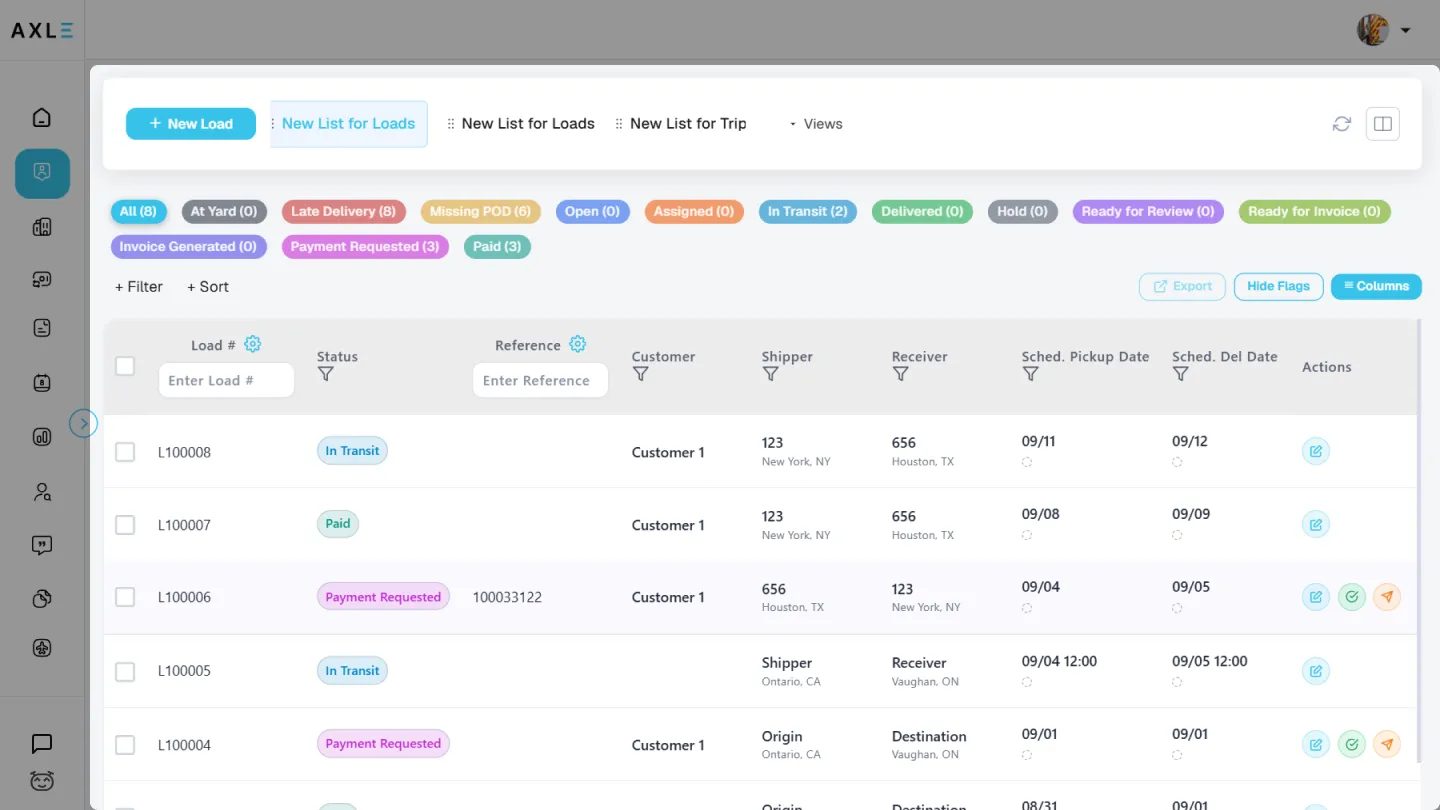
1. Daily To-Do List
- Instantly see which loads need to be invoiced today
- Like a live checklist that updates automatically
- No more switching between tabs or digging through paperwork
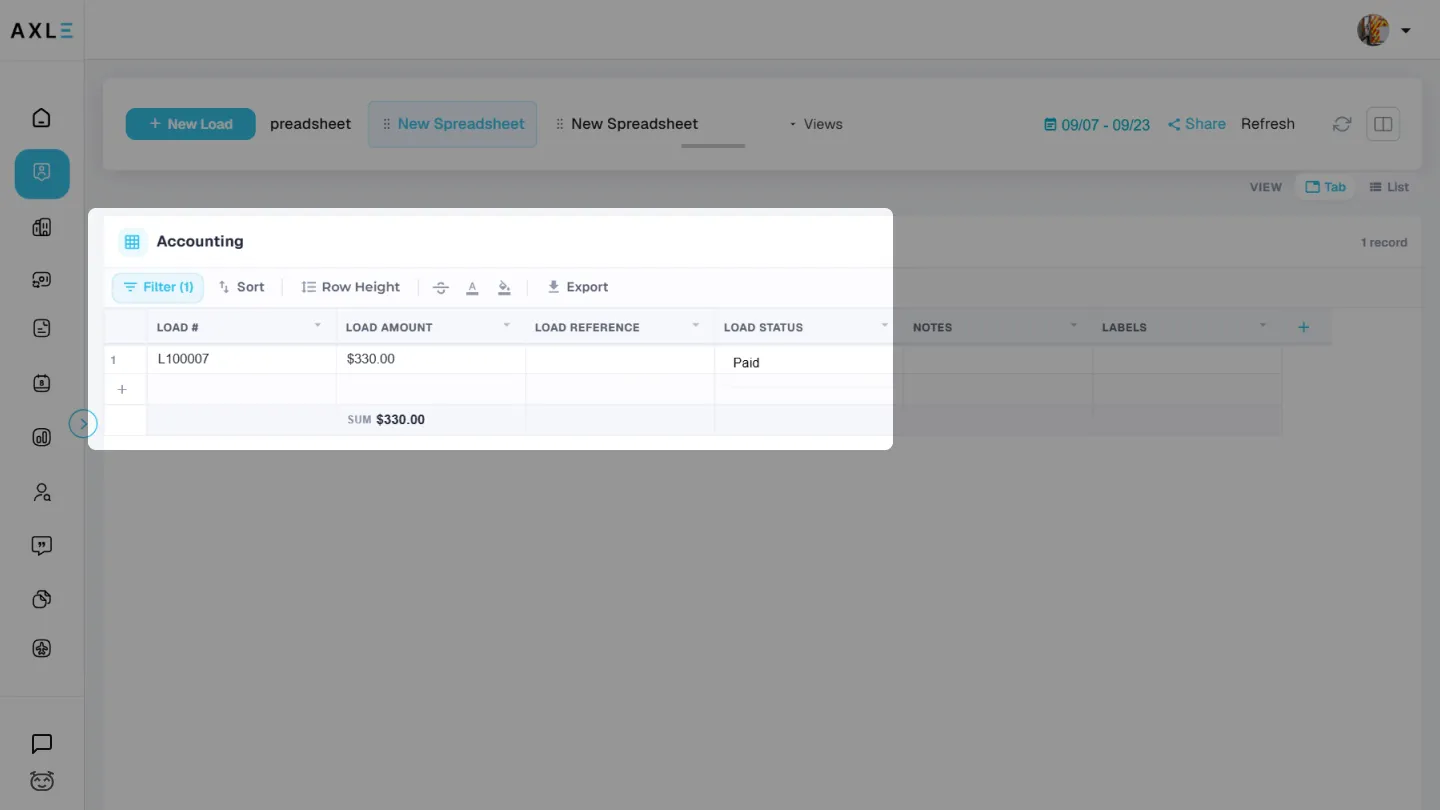
Example: Create a view called “Accounting. Daily(Subsheet)” showing all delivered loads(filter). Add columns like Load Number, Amount, Load reference and Load status.
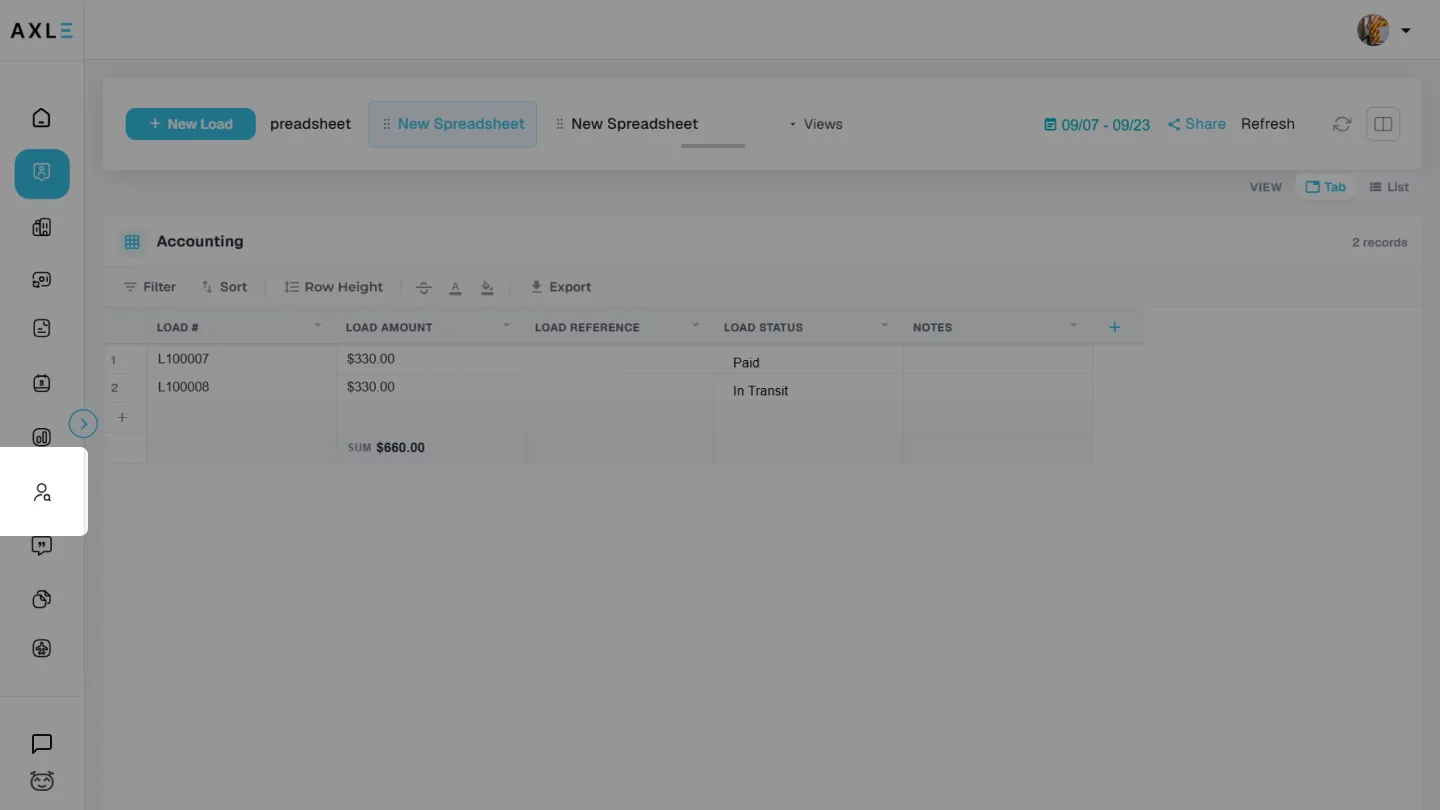
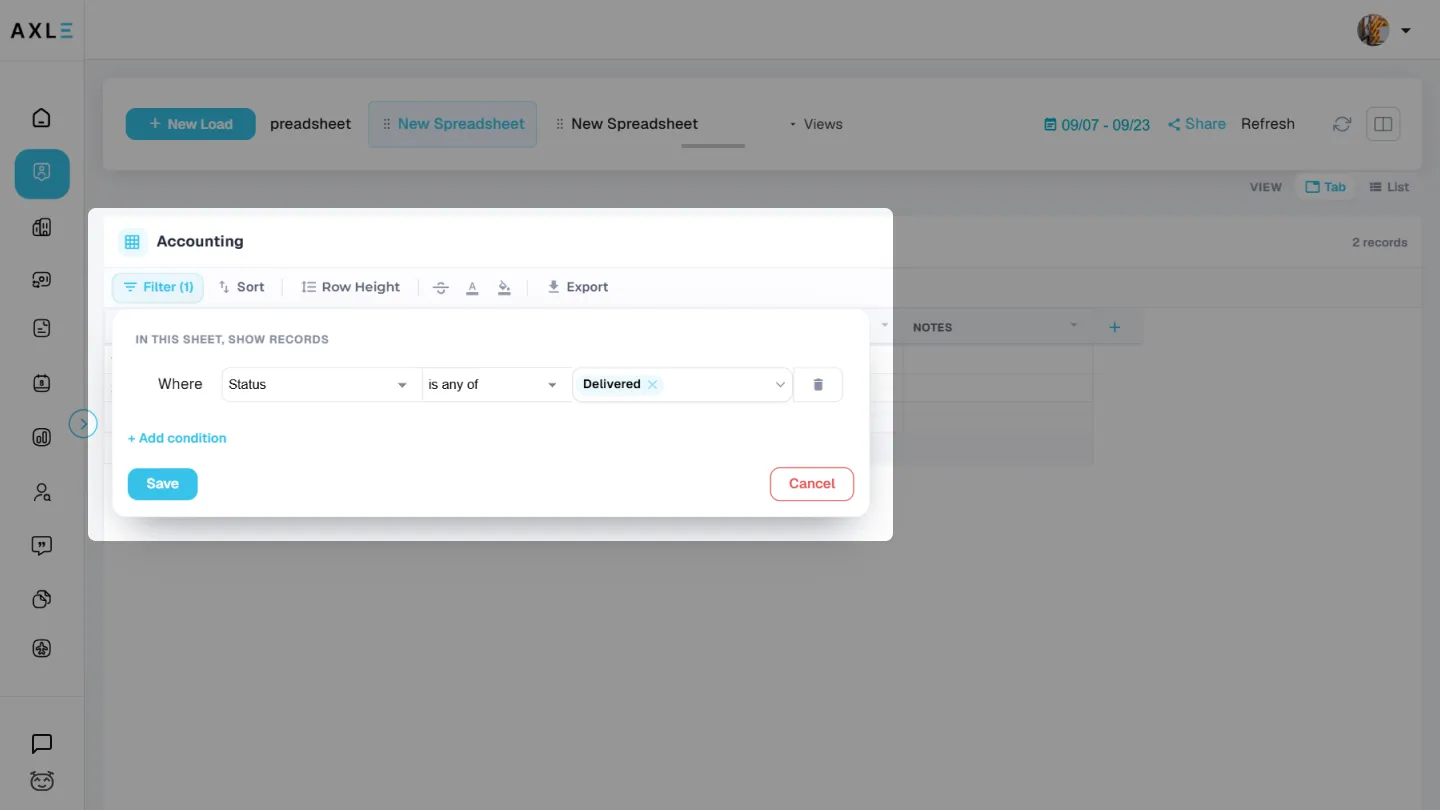
2. Payment Tracking
- Know exactly what’s been sent for payment and what’s been received
- Match expected payments against actual deposits
- Quickly spot any missed or delayed payments
Pro Tip: Filter your spreadsheet to show load status with “Payment requested” and any of “labels” i.e Pending, so you can follow up fast.
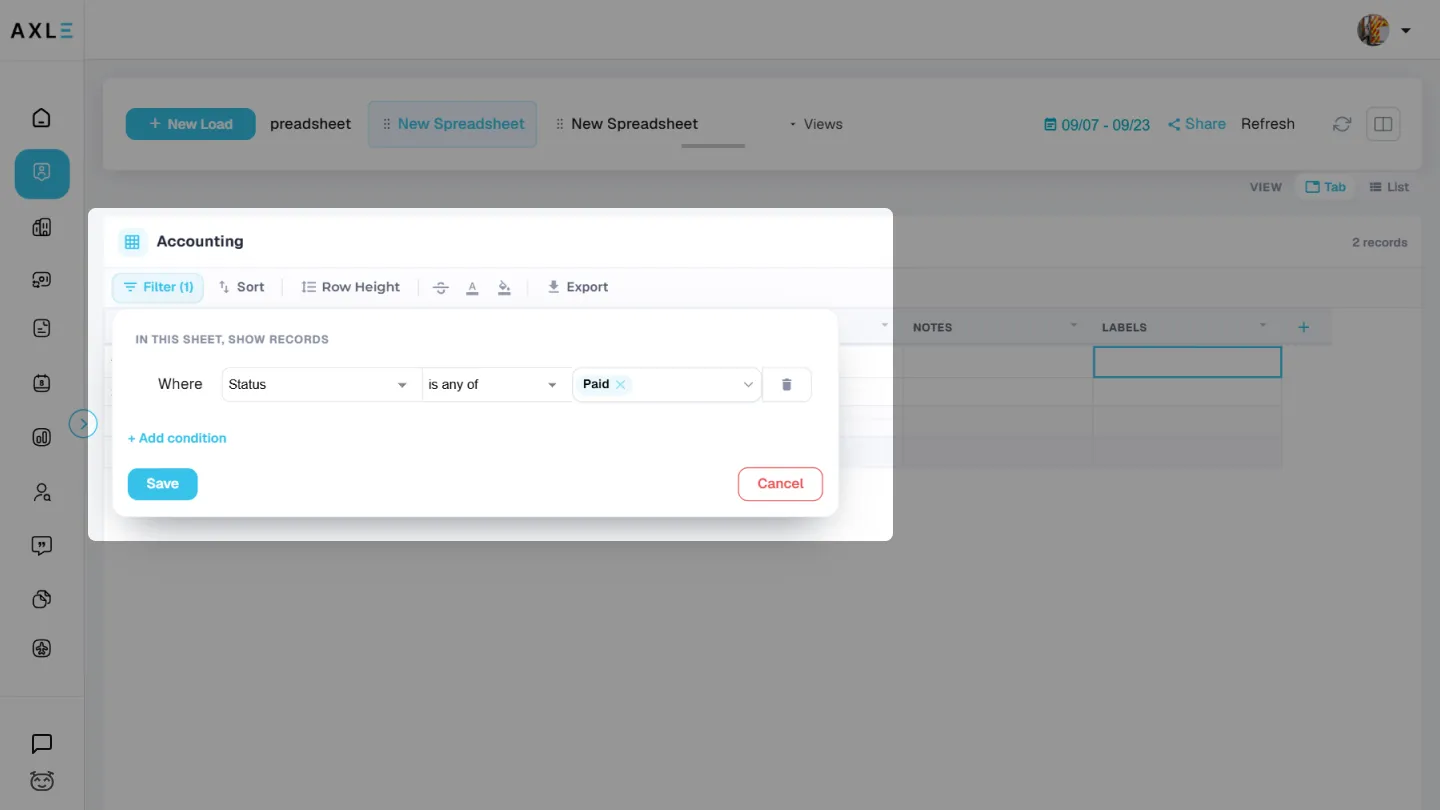
3. Problem Solver
- Keep a list of loads with issues like short pays, missing documents, or rejected invoices
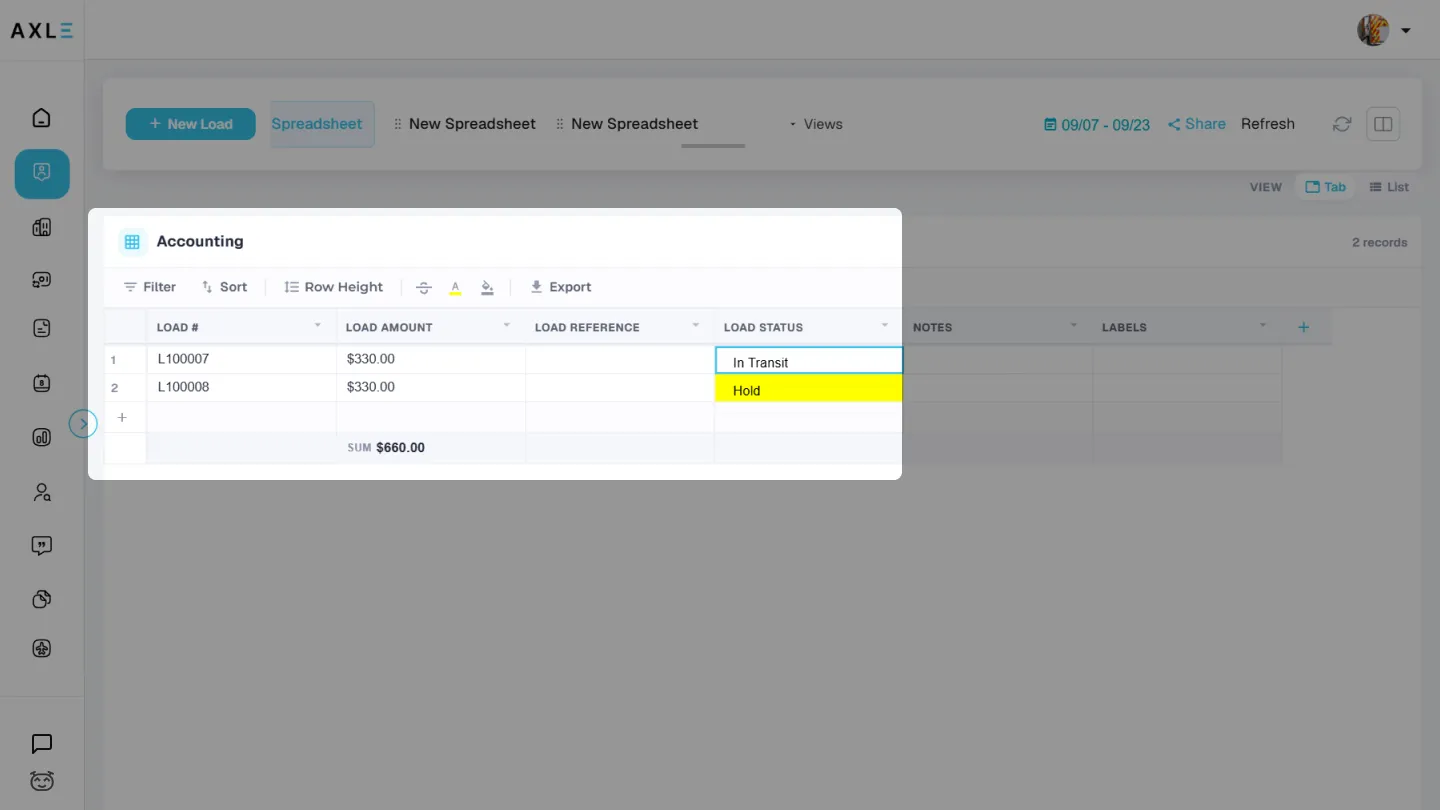
- Use color highlights or notes to flag problem loads
- They stay visible until resolved—nothing slips through the cracks
Example: Mark any load with open payment issues in yellow and add custom notes directly in the sheet for follow-up.

Why It Works
- Everything updates in real time — no more duplicate spreadsheets or lost sticky notes
- You can customize what columns show up, what gets filtered, and who sees what
- Share views with your team (read-only or editable) so everyone stays on the same page
It’s like having a smart, self-updating folder on your desk that always tells you what to do next.
Need help building your first view? Let us know — we’re here to help set it up with you!